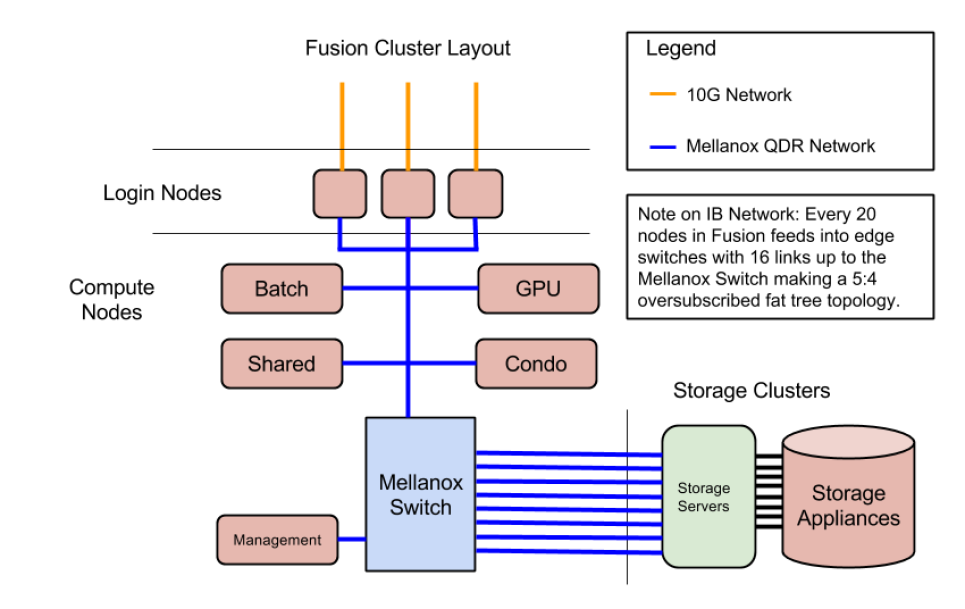
Fusion Cluster
This page contains preliminary information about using Fusion, the new LCRC cluster replacing Jazz. The information here is currently very brief and assumes you are already familiar with using jazz, MPI and submitting PBS jobs. If you have any questions which aren't answered here, please see the Fusion Briefing on the LCRC Presentations page, or contact LCRC Support at support@lcrc.anl.gov.
Logging In
To log into fusion, use SSH and the same SSH public key you use for jazz. The hostname for fusion is fusion.lcrc.anl.gov. As with jazz, this hostname will resolve to one of multiple login nodes for fusion, named flogin1, flogin2, etc. Each time you log into fusion, you may be connected to a diffferent login node. Use the login nodes for editing files, compiling code, and submitting jobs to fusion.
File Storage
Like jazz, fusion will have multiple filesystems which you can use: a home filesystem, scratch filesystems and a high-performance PVFS filesystem.
Home Filesystem
Fusion shares the same home directories with jazz, so you will have access to all of the same files on both clusters. The path to your home directory is also the same as on jazz, /home/username, although be aware that different commands and shell variables may currently give different paths. Since your home directory is shared between fusion and jazz, you may need to take care to keep files which are unique to each cluster separated, particularly object files and executables.
Scratch Filesystems
Each login and compute node on fusion has a local scratch disk which can be used for fast access to temporary files. The scratch filesystem is mounted as /scratch (not /sandbox) on all the nodes. For jobs on the compute nodes, the environment variable $TMPDIR will be automatically set to a directory under /scratch. You can use this directory for temporary files for jobs. It will be automatically created on job start and removed at job end.
PVFS Filesystem
The PVFS filesystem provides fast, parallel storage for jobs. This filesystem is currently undergoing testing. If you would like to try PVFS, please email support@lcrc.anl.gov for details on how to access it.
Software
Like jazz, your software environment on fusion is controlled by SoftEnv, using the SoftEnv file called ".soft" in your home directory. This file will be created for you automatically with the "@default" key the first time you log into fusion. This key adds the default compiler (currently Intel 11.1) and default MPI (currently MVAPICH2 1.4) to your environment. For reference, you can find your old SoftEnv file from jazz in your home directory with the name ".soft.jazz".
The following is a list of some of the software currently available on fusion. For a complete list, run "softenv -k".
| Software | Version | SoftEnv Key |
|---|---|---|
| Compilers | ||
| Intel | 11.1 | +intel-11.1 |
| PGI | 9.0 | +pgi-9.0 |
| GCC | 4.1 | @default |
| GCC | 4.4 | +gcc-4.4 |
| MPI | ||
| MVAPICH | 1.4 | +mvapich2-1.4-intel-11.1.059 +mvapich2-1.4-pgi-9.0.4 +mvapich2-1.4-gcc-4.1.2 +mvapich2-1.4-gcc-4.4.2 |
Running Jobs
Jobs are submitted to the PBS queues on fusion using the "qsub" command, just like on jazz. All the options are the same, with one addition; you may request the number of processors per node by appending the property ":ppn=N" to your node request. Eg, "qsub -l nodes=4:ppn=8" will request 4 nodes with 8 processors per node. If you don't specify ":ppn=N" in your request, your job will default to 8 processors per nodes when submitted to the normal queue and to 1 processor per node when submitted to the shared queue.
Fusion is currently using the "Hydra" process manager (from MPICH2) for launching MPI processes via job scripts. This is a new and simplified "mpiexec" which doesn't require an MPD ring and which automatically detects the $PBS_NODEFILE in your job environment and uses it for spawning processes on all the nodes assigned to your job. Here is a sample job script:
Using Hydra mpiexec:
#!/bin/sh #PBS -N hello #PBS -l nodes=4:ppn=8 #PBS -l walltime=0:05:00 #PBS -j oe cd $PBS_O_WORKDIR mpiexec ./hello
The Hydra mpiexec will count the number of nodes listed in the $PBS_NODEFILE to determine the number of processes to start. As a result, if you want to use all 8 cores on each of the fusion nodes assigned to your job, please be sure to include the ":ppn=8" property on the "nodes" resource request in your qsub command. If you want to start a different number of processes on the nodes for some reason, you may do so by specifying the "-n N" option to mpiexec, where "N" is the number of processes to start. Likewise, if you want to specify a different node file (for example, one which lists the nodes in a different order than given in $PBS_NODEFILE, so that you can control the order in which the processes are started on the nodes), you may do so by specifying the "-f nodefile" option, eg: "mpiexec -n 16 -f mynodes ./hello".
The verion of MVAPICH2 on fusion also supports two other methods for launching MPI processes via your job script, although we recommend using the Hydra mpiexec mentioned above. One is the traditional MPICH2 way of starting an MPD ring and launching processes with the non-Hydra mpiexec. The other is to use the MVAPICH2 specific "mpirun_rsh" command. Example scripts using each method are shown below. Don't forget that to use the MPD method, you need to create a $HOME/.mpd.conf file with a "secretword". Note too that to invoke the non-Hydra mpiexec, you'll need to use the command "mpiexec.py" instead of "mpiexec".
Using MPD:
#!/bin/sh #PBS -N hello #PBS -l nodes=4:ppn=8 #PBS -l walltime=0:05:00 #PBS -j oe np=`wc -l < $PBS_NODEFILE` nn=`sort -u $PBS_NODEFILE | wc -l` echo Number of nodes is $nn echo Number of processors is $np cd $PBS_O_WORKDIR mpdboot -n $nn -f $PBS_NODEFILE mpiexec.py -n $np ./hello mpdallexit
Using mpirun_rsh:
#!/bin/sh #PBS -N hello #PBS -l nodes=4:ppn=8 #PBS -l walltime=0:05:00 #PBS -j oe np=`wc -l < $PBS_NODEFILE` nn=`sort -u $PBS_NODEFILE | wc -l` echo Number of nodes is $nn echo Number of processors is $np cd $PBS_O_WORKDIR mpirun_rsh -np $np -hostfile $PBS_NODEFILE ./hello
Last modified: Mon Dec 7 21:33:24 CST 2009